Excel vs Google Sheets vs Notion Templates: Which Should You Use?

A practical comparison of Excel, Google Sheets, and Notion templates — when each one wins, where they fall short, and how to pick the right format for budgeting, planning, and business workflows.
"Should I use Excel, Google Sheets, or Notion?" is the question we hear most from people shopping for templates. The honest answer is that it depends on how you work — not on which tool is objectively "best." All three are excellent, and the right choice usually comes down to where your data lives, who needs to touch it, and how much structure you want out of the box.
This guide breaks down the real trade-offs so you can choose a format with confidence before you buy. If you already know what you need, you can jump straight to Collections and filter by format.
The short version
| Need | Best format | Why |
|---|---|---|
| Heavy formulas, offline editing, pivot tables | Excel | Most powerful calculation engine, works without internet |
| Real-time sharing and light collaboration | Google Sheets | Free, browser-based, easy to share a link |
| Notes, databases, and workflows in one place | Notion | Combines text, tasks, and relational data |
If you want a single rule of thumb: Excel for numbers, Google Sheets for sharing, Notion for systems. Everything below explains why.
Excel templates: the calculation workhorse
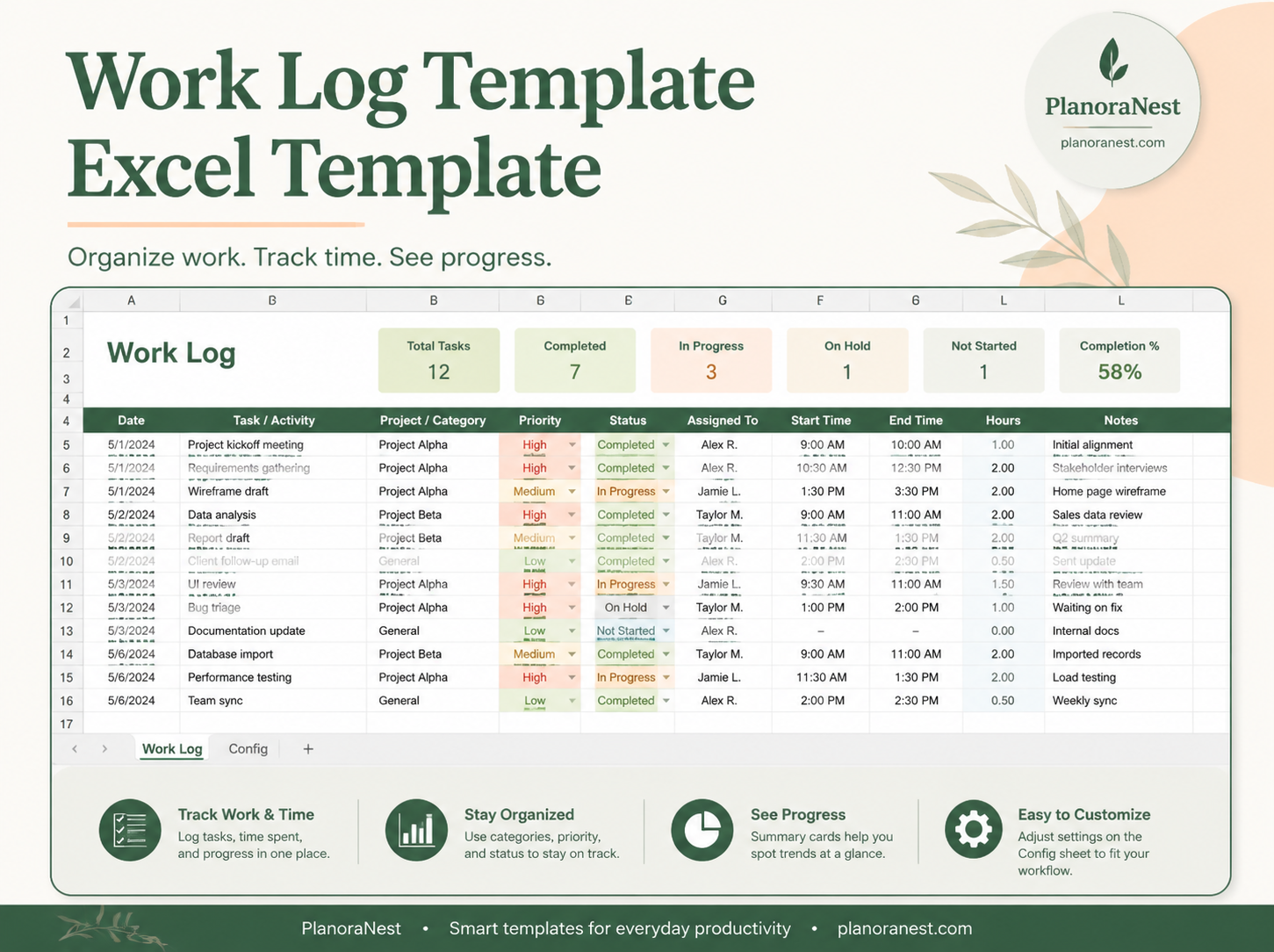
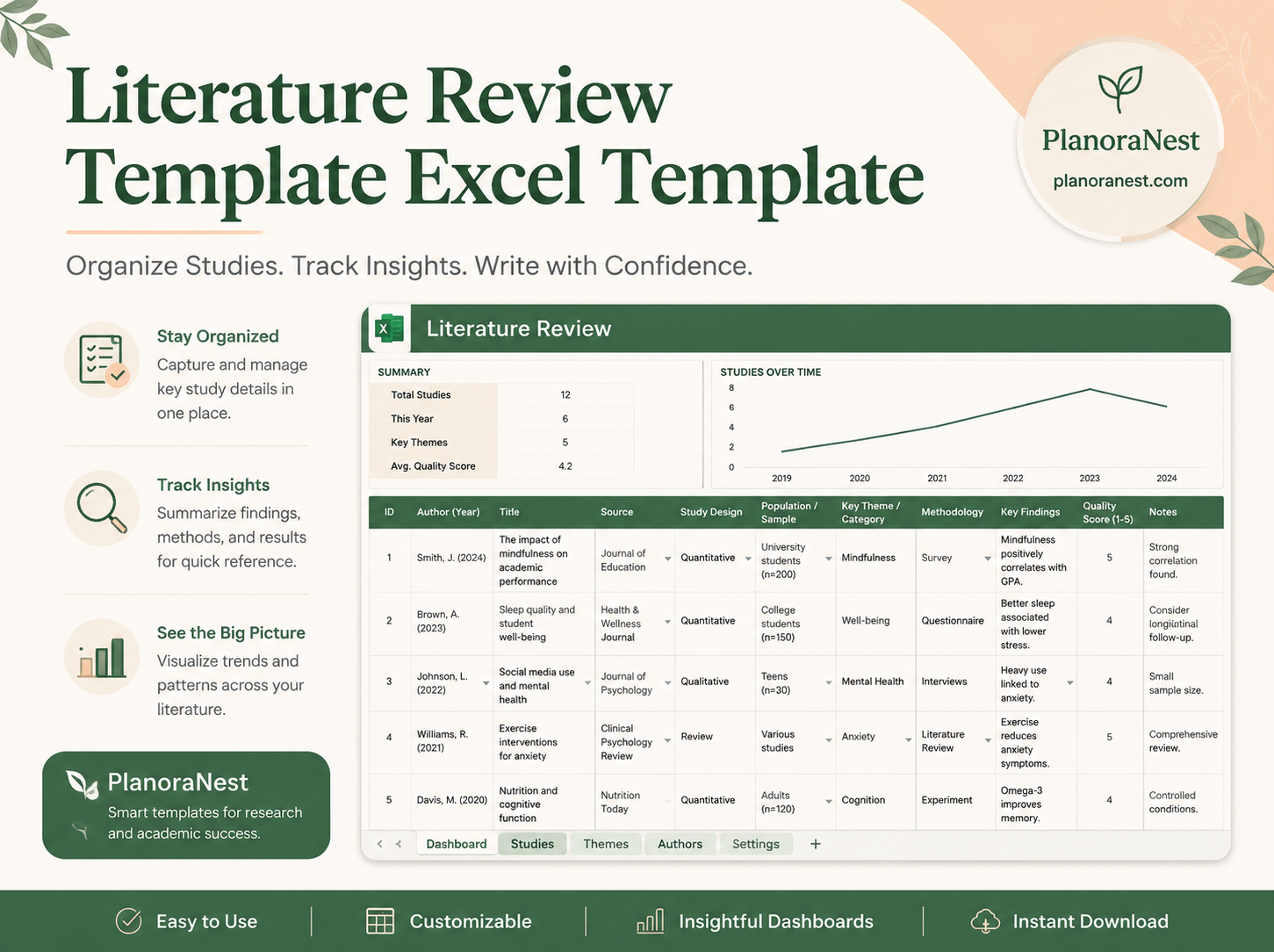
Excel has been the standard for spreadsheet work for decades, and for good reason. Its formula engine, pivot tables, and charting tools are still the most capable of the three. If your template involves serious math — amortization schedules, multi-tab budgets, business bookkeeping, or KPI dashboards — Excel gives you the most headroom.
Excel wins when:
- You need advanced formulas, array calculations, or pivot tables
- You work offline or handle sensitive data you would rather keep on your device
- You want to print clean, paginated reports
- You already pay for Microsoft 365 and live in the Office ecosystem
Where it falls short: sharing is clunkier than Google Sheets, and collaboration usually means emailing files or syncing through OneDrive. Version confusion ("budget_final_v3_REALLY.xlsx") is a real cost.
Most of our budget spreadsheet templates and business workbooks ship as Excel files first because that is where the formulas can be richest. If you are setting up a household budget, our companion guide on how to build a budget spreadsheet walks through the structure step by step.
Google Sheets templates: built for sharing
Google Sheets covers roughly 90% of what most people use Excel for, and it does one thing dramatically better: collaboration. Anyone with a link can view or edit in real time, comments are threaded, and there is no software to install. For teams, freelancers sharing with clients, or families managing a budget together, that alone can be the deciding factor.
Google Sheets wins when:
- Multiple people need to edit the same document at once
- You want to share a link instead of attaching a file
- You are working from a Chromebook, tablet, or any browser
- You want automatic version history without saving copies
Where it falls short: very large files slow down, some advanced Excel functions behave differently, and you need an internet connection for the best experience. For most planners, trackers, and budgets, none of that matters.
A useful detail: almost every Excel template can be opened in Google Sheets, and most Google Sheets templates export cleanly to Excel. So the format you start with is rarely a permanent commitment. When you buy a spreadsheet from Collections, you can usually move it between the two with a single import.
Notion templates: structure beyond the grid
Notion is not a spreadsheet — it is a workspace that happens to include spreadsheet-like databases. That difference is the whole point. In a single Notion page you can combine written notes, checklists, a calendar view, and a relational database that links tasks to projects to clients. For people building a system rather than crunching a single set of numbers, Notion is hard to beat.
Notion wins when:
- You want notes, tasks, and data living together instead of in separate files
- You like switching between table, board, calendar, and gallery views
- You are organizing projects, content, habits, or a personal knowledge base
- You work across desktop and mobile and want everything synced automatically
Where it falls short: Notion is weaker at heavy math. If your template needs complex formulas or pivot tables, a spreadsheet is the better tool. Notion also has a learning curve — which is exactly why pre-built templates save so much time. You duplicate a finished workspace instead of assembling one from blank pages.
Our planning and productivity templates include both spreadsheet and Notion options so you can match the format to the habit you are trying to build.
How to actually decide
Instead of comparing feature lists forever, answer three quick questions:
- Where does this data need to live? On your device only → Excel. In a shared link → Google Sheets. Inside a broader workspace with notes and tasks → Notion.
- Who edits it? Just you → any format. A team or a client → Google Sheets or Notion.
- How much math is involved? A lot → Excel. Some → Google Sheets. Mostly organization → Notion.
If you are still unsure, start with the format you already open most days. The best template is the one you will actually keep using, and familiarity beats features for long-term adoption.
Why a paid template beats a blank page
Free templates and blank files are everywhere, so it is fair to ask why a paid template is worth it. The difference is design and time. A good template gives you a tested structure, working formulas, clear instructions, and a layout that does not break when you start editing. You are paying to skip the hours of setup, trial and error, and formula debugging — and to start from something that already works.
Every PlanoNest template, in any of the three formats, includes step-by-step instructions, instant digital delivery, and a 14-day refund policy. If you are brand new here, our getting started guide shows the full path from browsing to a workflow you rely on every week.
Ready to choose? Browse Collections, filter by Excel or Notion, and pick the first template that matches something you already do on a blank page. That is usually the fastest way to see why a structured starting point beats building from scratch.