How to Choose a Project Tracker Excel Template

What to look for in a project tracker Excel template — task structure, Gantt views, status tracking, and the features that separate a tracker you use from one you abandon.
A project tracker lives or dies on one quality: whether your team actually keeps it updated. The fanciest Gantt chart is useless if people stop logging progress after the first week. So instead of chasing features, this guide focuses on what makes a project tracker Excel template genuinely usable — and how to choose one that fits the way your team already works.
If you want to browse options first, our project management templates collection includes task boards, timelines, and trackers for both Excel and Notion.
What a good project tracker actually needs
After building and using dozens of these, I have found that the trackers people stick with share five traits. Everything else is optional.
1. A clear task list with owners
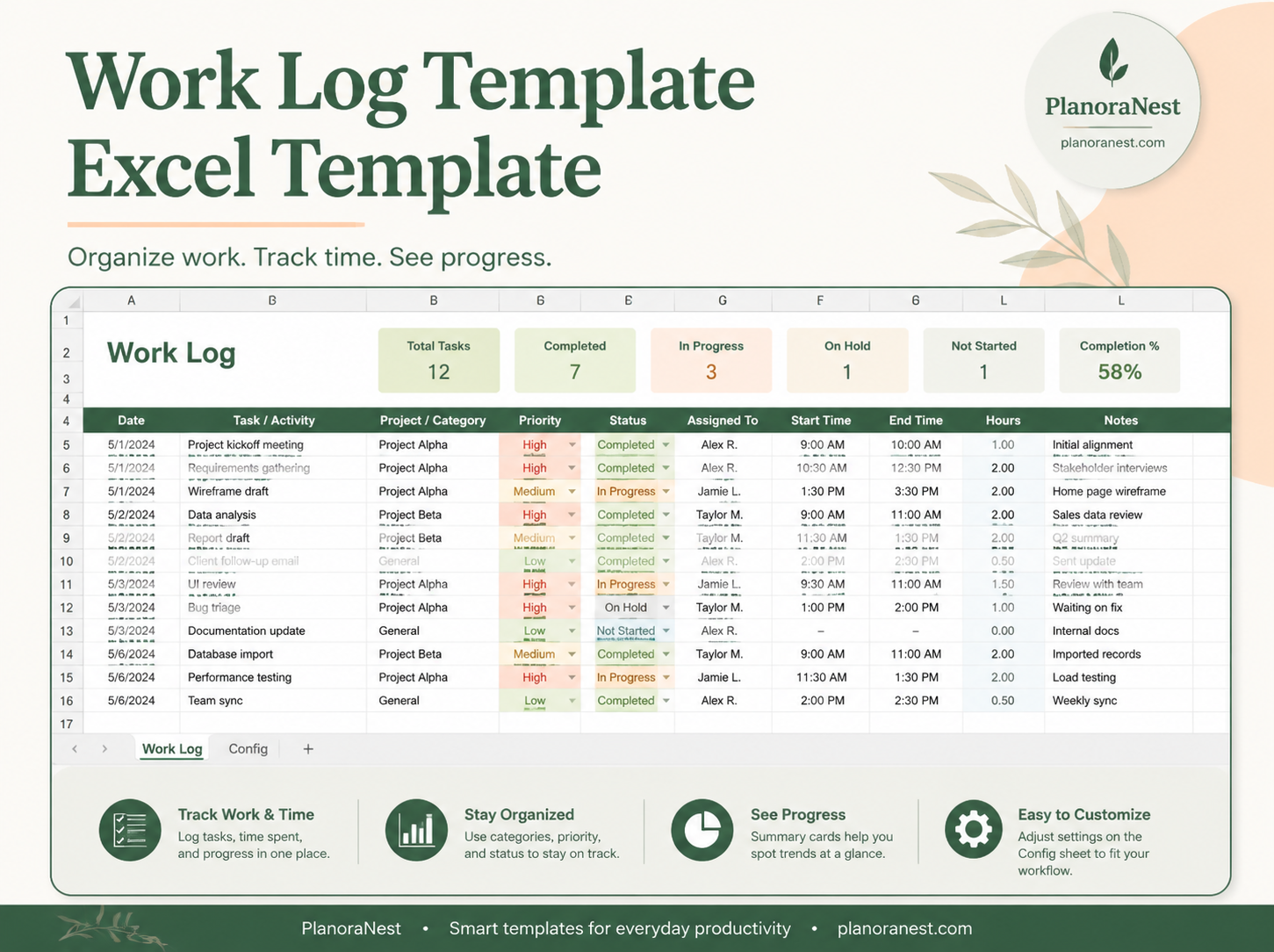
The core of any tracker is a simple, scannable list of tasks. Each row should answer: what is the task, who owns it, and when is it due. If a tracker makes you hunt for the owner or the deadline, it adds friction every single time you open it.
A solid task table looks like this:
| Task | Owner | Start | Due | Status | % Complete |
|---|---|---|---|---|---|
| Draft proposal | Alex | Jun 1 | Jun 5 | In progress | 60% |
| Client review | Sam | Jun 6 | Jun 8 | Not started | 0% |
2. Status that updates a summary automatically
A status column ("Not started / In progress / Blocked / Done") becomes powerful
when it feeds a summary. Using COUNTIF formulas, a good template counts how
many tasks sit in each status and shows it at the top:
=COUNTIF(StatusColumn,"Done")→ completed tasks=COUNTIF(StatusColumn,"Blocked")→ what needs attention now
That single rollup turns a flat list into a dashboard you can read in five seconds.
3. A timeline or Gantt view
Seeing tasks on a calendar reveals overlaps and bottlenecks that a list hides. A Gantt chart template does not need to be complex — even a simple bar across week columns shows you where work clusters and where you have slack. The best Excel trackers build the Gantt from your start and due dates automatically, so you never maintain it by hand.
4. Protected formulas
This is the feature people overlook until it bites them. Summary cells, percent calculations, and timeline formulas should be locked so a teammate cannot accidentally overwrite them while editing a task. A tracker that breaks the first time someone types in the wrong cell will not survive a real project.
5. Room to customize without breaking
Every team works differently, so a good template lets you rename statuses, add columns, and adjust categories without the whole sheet falling apart. Tested templates separate input areas (where you type) from calculation areas (where formulas live), so customizing is safe.
Excel vs Notion for project tracking
Excel and Notion both make excellent project trackers, but they suit different teams. If you are weighing the two, our full Excel vs Google Sheets vs Notion comparison goes deeper, but here is the short version for project work:
- Choose Excel if you want strong formulas, automatic Gantt charts from dates, printable reports, and offline access. Excel is ideal for structured, numbers-heavy projects and for people who already live in spreadsheets.
- Choose Notion if you want to switch between board, table, and calendar views, link tasks to notes and documents, and collaborate live across desktop and mobile. Notion shines for content workflows and cross-functional teams.
Neither is wrong. Pick the one your team will open without being reminded.
Common mistakes to avoid
When choosing or building a tracker, watch out for these:
- Too many columns. If a tracker has 20 fields, most stay empty. Start with the six essentials and add only what you use.
- No single source of truth. A tracker only works if everyone updates the same file. Decide where it lives and link to it everywhere.
- Manual timelines. If updating the Gantt means dragging bars by hand, it will fall out of date. Choose a template that derives the timeline from dates.
- No status summary. Without a rollup, a long task list is just a list. The summary is what makes it a management tool.
Free vs paid project trackers
Free trackers are fine for a one-off personal project. For recurring or team-based work, a paid template usually pays for itself the first time it saves you from a broken formula or a missed deadline. What you get with a well-built paid tracker:
- Automatic Gantt and status rollups that would take hours to wire up correctly yourself.
- Protected formulas so the tracker survives real-world editing.
- Clear instructions for adapting it to your workflow, plus support if you get stuck.
That reliability is the whole point — a tracker you can trust is one your team will keep using.
Where to go next
You now have a checklist for evaluating any project tracker: a clean task list with owners, an auto-updating status summary, a date-driven timeline, protected formulas, and safe customization. Hold any template up to those five and you will quickly see which ones are built to last.
When you are ready, browse our project management templates or the broader business and operations collection. New to PlanoNest? The getting started guide covers checkout, delivery, and customizing your first template.