Build an Asset Tracking App in Excel: Practical Guide

Structure an Excel asset tracking workbook with the right fields, formulas, and sheets—or start faster with a ready-made template. Step-by-step for small teams.
Most teams do not need custom software to track assets—they need a workbook that still makes sense after the fiftieth row. If you searched for building an asset tracking application in excel services, you are probably looking for a structured Excel workbook (sheets, columns, formulas)—not a SharePoint "Excel Services" web development tutorial. This guide covers the workbook approach: the fields that matter, how to lay out sheets, and when a ready-made template beats building from scratch.
I have spent years inside Excel building trackers for budgets, clients, and inventory. The pattern is always the same: start simple, add columns as decisions get harder, and hope the file survives more than one person editing it. Asset tracking is no different.
Key takeaway: A usable Excel asset tracker needs unique IDs, location and ownership fields, purchase and warranty data, and formulas that update totals automatically—before you worry about barcodes, APIs, or enterprise platforms.
For broader business spreadsheet workflows, browse business spreadsheet templates on PlanoNest.
What Counts as an "Asset Tracking Application" in Excel?
An asset tracking application in Excel is more than a flat list. It is a small system inside a workbook:
- A primary Inventory sheet with repeatable rows and grouped columns
- Optional Suppliers or Vendors sheet linked by name or category
- Summary formulas (totals, dates) that update without manual recalculation
- Enough structure that a new team member can add a row without breaking the layout
A static list tracks names. An application tracks decisions: What do we own? Where is it? What is it worth? When does the warranty expire?
| Approach | What you get | Best for |
|---|---|---|
| Minimum viable tracker | ID, name, category, location, status, purchase date, warranty, cost | Quick start, single category |
| Extended tracker | + serial/model, supplier, assigned-to, notes, depreciation columns | IT hardware, audit prep, multi-department |
Why Teams Start with Excel for Asset Tracking
Excel remains the default first step for asset tracking because the economics are obvious:
- No new license if Microsoft 365 or Excel is already on every desk
- No implementation project—open a file and start typing
- Forces clarity—you decide which columns earn their place before buying software
Industry surveys cited by IT asset management vendors suggest a large share of organizations still rely on manual methods, including spreadsheets, for IT assets. That is not a failure of discipline; it is a rational choice when inventories are small and updates are infrequent.
Excel works well when:
- You track fewer than roughly 50–100 active assets
- One person owns the file and batches updates weekly or monthly
- You do not need automated discovery, native alerts, or formal audit trails
- Your goal is visibility, not real-time operational control
The spreadsheet stops being "good enough" when device counts climb, multiple people edit different copies, or warranty dates slip past without anyone noticing. The sections below help you build something that lasts longer—but every Excel tracker has a ceiling.
Core Fields Every Asset Tracker Needs
Every credible competitor guide—InvGate, Smartsheet, Tech.co, small-business MSP blogs—converges on the same core columns. If a field is not on this list, justify it before adding it.
| Field | Purpose | Example |
|---|---|---|
| Asset ID / Tag | Unique reference for audits | IT-2026-0042 |
| Asset Name | Human-readable label | Dell Latitude 5540 |
| Category | Filter and report by type | Computer Hardware |
| Status / Condition | Operational state | In Use, In Storage, Retired |
| Department / Area | Organizational location | Marketing |
| Room / Location | Physical spot | Office 2B, Desk 14 |
| Purchase Date | Age and lifecycle planning | 2024-03-15 |
| Supplier | Vendor for reorders and warranty | CDW |
| Warranty Expiry | Renewal and replacement timing | 2027-03-15 |
| Unit Value / Cost | Financial baseline | 1,249.00 |
| Quantity | Count for consumables or batches | 1 |
| Serial Number | Audit and support calls | SN-9X2K… |
| Model Number | Repurchase and compatibility | Latitude 5540 |
Group columns logically—Item Description, Location, Purchase Information, Quantity & Value, Item Details—so users scan left to right in the order they ask questions.
Optional fields as you grow: assigned-to, depreciation method, lifecycle stage, last audit date, photo/link URL.
For related template collections, see inventory and CRM templates.
Workbook Architecture — One Sheet vs Multi-Sheet
Single-sheet layout
One Inventory tab is enough when:
- Assets share the same column set
- Volume stays under ~50 rows you actively maintain
- One category dominates (e.g., laptops only)
Multi-sheet layout
Separate tabs help when asset types need different columns:
- IT equipment — serial, model, warranty, assigned user
- Office furniture — condition, room, reupholstery notes
- Fleet vehicles — VIN, license plate, maintenance log
Tech.co and similar guides use three tabs for this reason. You can also use one Inventory sheet plus a dedicated Suppliers tab for vendor contacts, lead times, and reorder notes—a pattern that scales without duplicating vendor data on every row.
Sharing matters: Excel desktop, Excel on the web, Google Sheets, WPS, and LibreOffice Calc all open standard .xlsx files. If your team lives in Google Sheets, import once and share a link. For a comparison of when each format wins, read Excel vs Google Sheets vs Notion templates.
Step-by-Step — Build Your Asset Tracker from Scratch
-
Create grouped headers — Row 1: section labels (Item, Location, Purchase, Value). Row 2: column names. Freeze the header rows.
-
Add one realistic sample row — Use real categories and formatting you expect to keep. Copy this row down for new entries.
-
Insert a "last updated" date — In an visible cell, enter
=TODAY()so anyone opening the file knows how fresh the snapshot is. -
Add per-row value formula — If Unit Value is column L and Qty is column M, set Value column N to
=L3*M3and fill down. -
Add a total inventory formula — Above the data, use
=SUM(N3:N100)(extend the range as you grow) for portfolio value at a glance. -
Create a Suppliers sheet — Columns: Supplier Name, Product, Website, Contact, Email, Phone, Lead Time (days), Address. Reference supplier names in Inventory for consistency.
-
Apply conditional formatting — Red fill when warranty date
< TODAY(); amber when Condition = "Poor". Visual cues substitute for software alerts.
Tips:
- Data validation dropdowns for Status reduce "In Use" vs "in use" chaos
- Hide helper columns before printing audit sheets
- Store one master file in a shared location; email attachments multiply versions
Warning: Manual entry is the main failure mode. Establish a single source of truth and one owner who merges changes—otherwise two "final" spreadsheets diverge within a week.
Faster Start — Using a Structured Excel Template
Building from blank teaches you which columns matter. It also burns an afternoon you could spend logging real assets.
| Option | Pros | Cons |
|---|---|---|
| Blank workbook | Total control, zero cost | No formulas, no guide, easy to under-build |
| Free online template | Fast column ideas | Often one sheet, no supplier tab, inconsistent formulas |
| Structured paid template | Onboarding sheet, pre-built formulas, vendor directory | Small one-time cost |
The template includes:
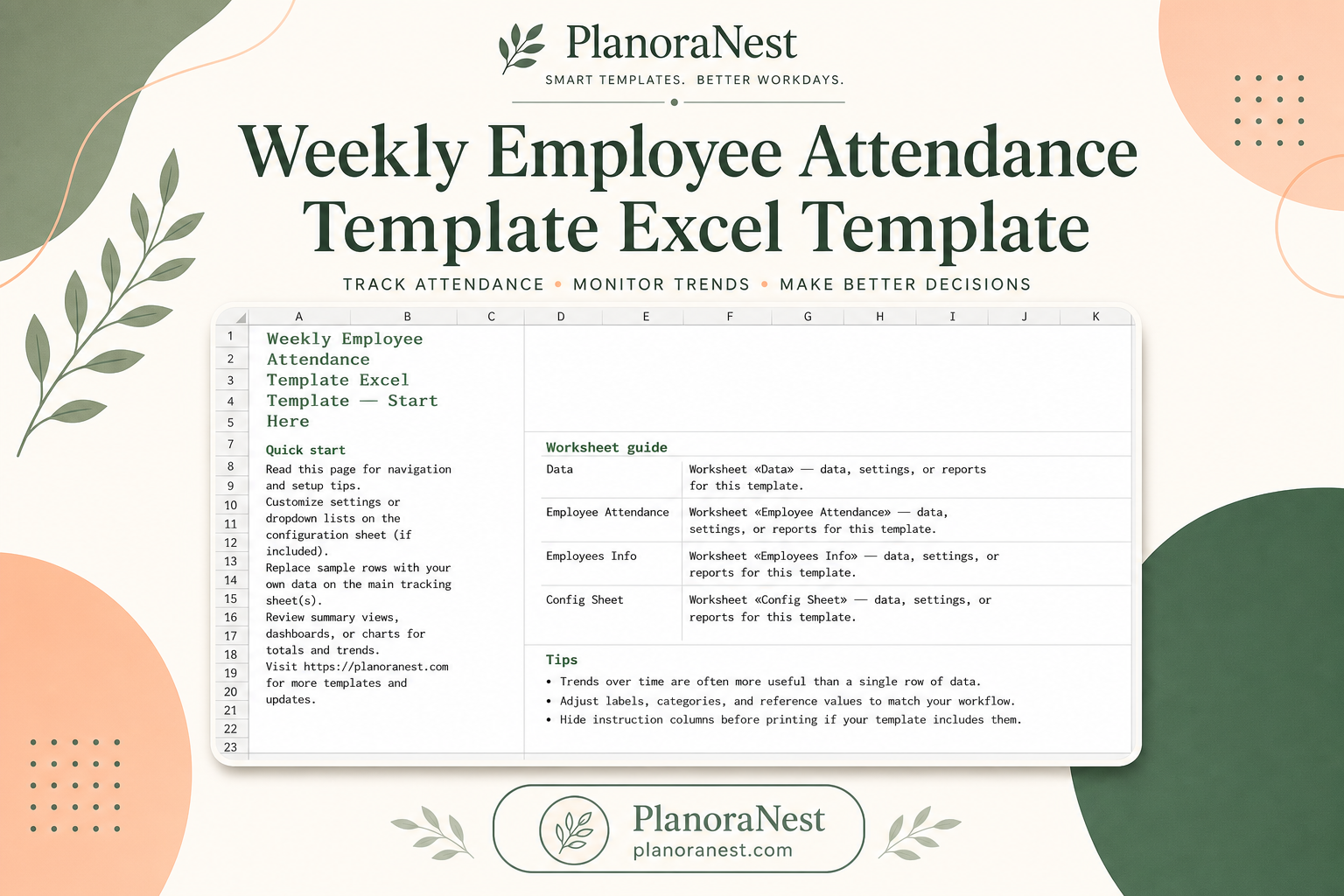
- Start Here — two-minute orientation and setup tips
- Inventory — 17 columns in five groups, sample row, 50+ blank rows,
=TODAY()date cell,=SUMtotal value - Suppliers — 12-column vendor directory with lead times
- About — license and usage terms
Formulas ship working: row value = Unit Value × Qty; header total sums the value column. The file opens in Excel, Google Sheets, WPS Office, and LibreOffice Calc—no macros, no locked sheets.
If your team needs assets logged this week, a structured template is usually the better "application" than a blank grid.
Built-In Formulas That Save Maintenance Time
Three formulas cover most small-team needs:
=TODAY() ' Last updated visibility (e.g., cell B4)
=L3*M3 ' Row value = Unit Value × Qty
=SUM(N3:N62) ' Total inventory value
When row values calculate automatically, your total portfolio value updates the moment you change a quantity or unit price—no pivot table required for basic reporting.
Extend the SUM range when you exceed the default blank rows. Copy the row formula down instead of retyping—it preserves column references.
Common Limitations and When to Upgrade
| Excel workbook | Dedicated asset / ITAM software |
|---|---|
| Low cost, instant start | Subscription + implementation |
| Flexible columns and layouts | Standardized workflows |
| Fine for small, slow-changing inventories | Built for discovery, alerts, audit trails |
| Manual updates and version risk | Automated inventory sync |
| Conditional formatting as "alerts" | Native warranty and license notifications |
Spreadsheets fail gradually: missed warranty renewals, conflicting file versions, uncertain software installed per device, hours spent consolidating tabs before an audit.
Upgrade signals:
- 100+ assets or rapid growth
- Multiple editors without check-in/check-out discipline
- Compliance requiring who-changed-what audit logs
- Missed expirations that already cost money
See also: For a step-by-step fixed-asset audit routine inside Excel, see our companion guide — link in Related Guides below. Dedicated platforms make sense at scale. Until then, a well-built workbook—or a structured template you can customize—often delivers better ROI than jumping to enterprise ERP.
Related Guides in This Series
This article is the pillar guide for our asset-tracking-in-Excel cluster. Go deeper on specific workflows:
-
How to Keep Track of Fixed Assets in Excel (Step-by-Step) — Audit routines, depreciation basics, and monthly maintenance habits for fixed assets without repeating the full field encyclopedia above.
-
Complete Guide: Building an Asset Tracking Application in Excel Services — Alternate angle on the hyphenated query variant, with implementation checklists for teams comparing build vs buy.
FAQ
How do I create an asset tracker in Excel?
Create grouped column headers, add a sample asset row, enter =TODAY() for freshness, use =Unit Value × Qty per row and =SUM for totals, optionally add a Suppliers sheet, and apply conditional formatting on warranty dates. Follow the seven steps in this guide—or start from a structured asset tracking template if you want formulas and layout pre-built.
How do I create a tracking system in Excel?
A system means repeatable structure: master Inventory sheet, optional category tabs or Supplier directory, validated Status values, one shared master file, and summary formulas. Single flat lists become systems when totals and dates update automatically and columns map to real decisions (location, owner, warranty, value).
How do I create an asset tracking system?
At small scale, an Excel workbook is the system. At larger scale, you add dedicated asset software with discovery agents and alerts. The breakpoint is usually inventory size, number of editors, and whether missed warranties or audit prep already hurt the business—not a magic asset count alone.
What is the best asset tracking software?
There is no universal winner. Small teams with straightforward inventories often outgrow free blank sheets before they outgrow a structured Excel template. Organizations with hundreds of devices, strict compliance, or automated discovery needs should evaluate dedicated IT asset management or asset tracking platforms. Start with clarity in Excel; upgrade when maintenance cost exceeds the value of the data.
Does an Excel template work for IT asset tracking?
Yes—if columns cover model, serial, ID tag, assigned department, room, and warranty expiry. IT teams benefit from linking a photo or spec URL per device and keeping vendor contacts on a Suppliers sheet.
Can I customize columns and formulas?
Standard .xlsx templates without locked sheets let you rename headers, insert columns (e.g., Assigned To, Depreciation Method), extend SUM ranges, and add data validation. Treat the template as a starting architecture, not a rigid form.
Bottom Line
An Excel asset tracking application is a workbook designed for decisions: unique IDs, grouped columns, supplier context, and formulas that keep totals honest. Build it yourself if you want full control; use a structured template if you want to log assets this week.
Ready to go deeper on fixed assets? Continue with How to Keep Track of Fixed Assets in Excel (Step-by-Step).