 Quick view
Vendor: PlanoNest
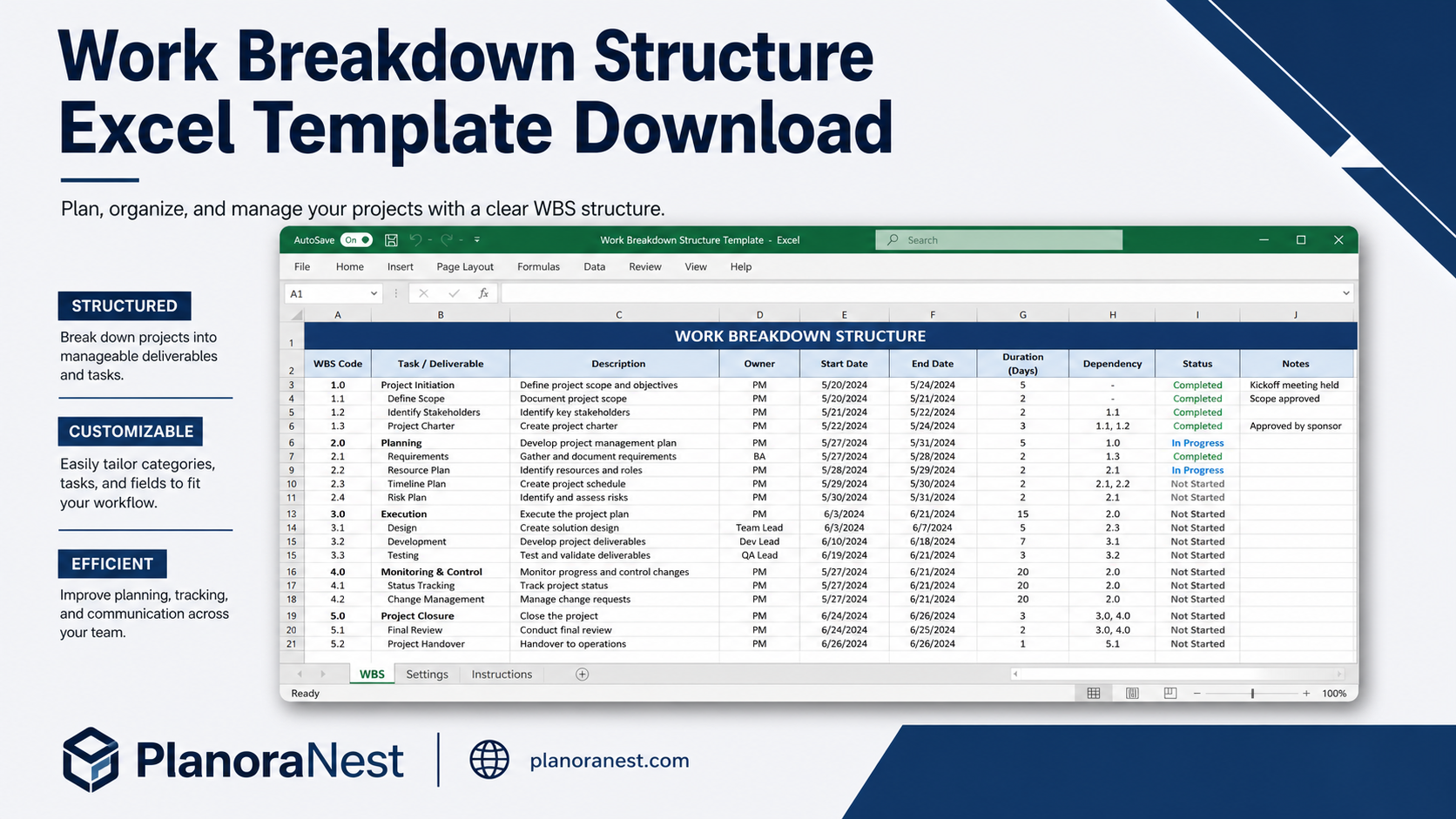
Work Breakdown Structure Spreadsheet Excel Template$1.00
4.7 / 5.0 (3) total reviews
Vendor: PlanoNest
$1.00
Excel
Quick sign in at checkout — your templates are saved to your library forever.
Related picks
Explore other digital products that pair well with this template.
Quick viewVendor: PlanoNest
Work Breakdown Structure Spreadsheet Excel Template$1.00
 Quick view
 Quick view
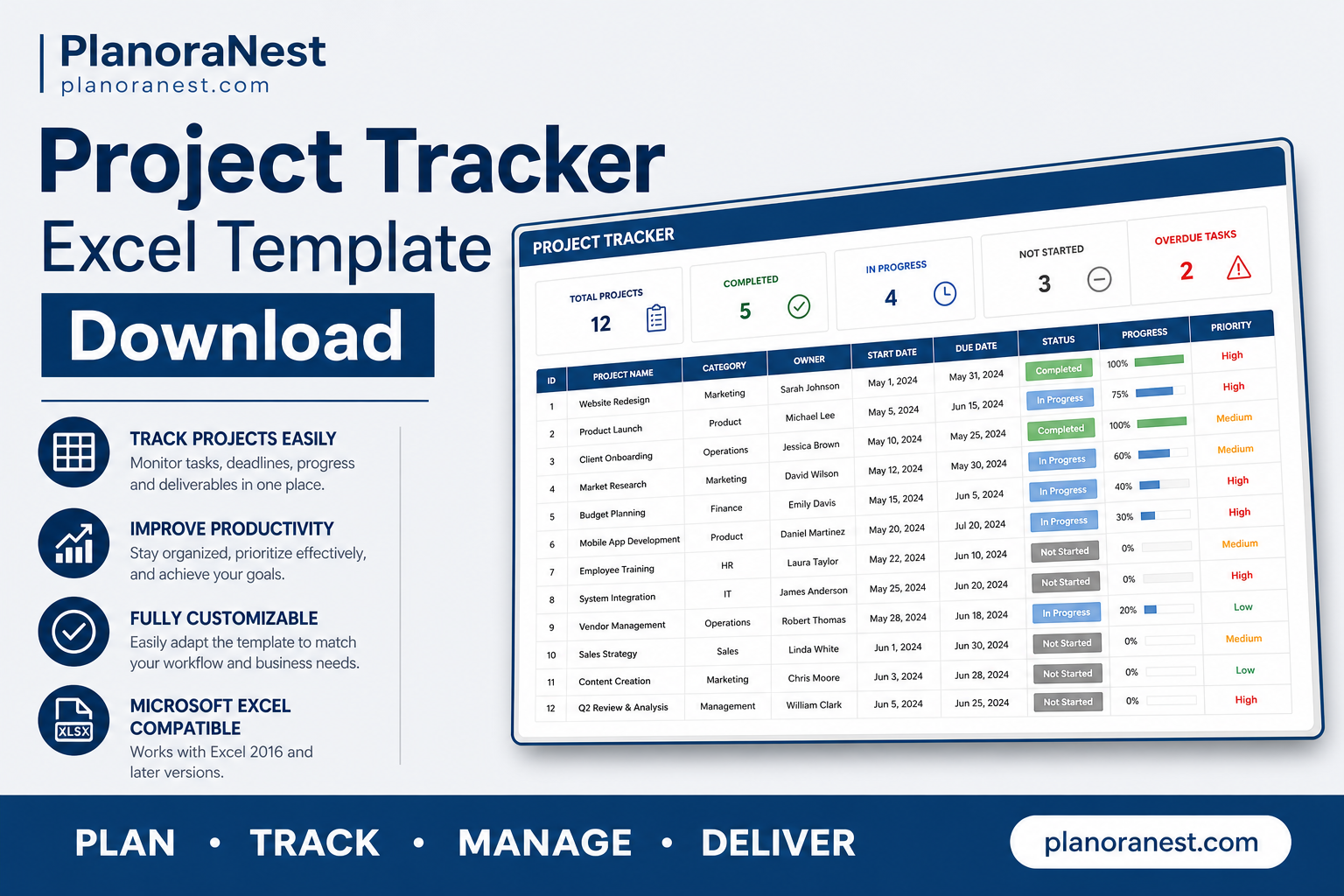
This Project Tracker Excel template from PlanoraNest is built for consultants, freelancers, and service providers who juggle multiple client projects simultaneously. Track project status, budget, hours, and profitability across your entire portfolio in one 15-column dashboard.
Unlike rigid project management tools, this template adapts to how service providers actually work — with configurable priority levels, status labels, and per-project financial tracking. One-time purchase at $1, instant download, no subscription.
Independent consultants and freelancers managing 5-20 active client projects at once.
Agencies and service providers tracking project profitability across their portfolio.
IT service desks and MSPs monitoring multiple customer projects with different priorities.
Anyone billing by project who needs to see all engagements in one view with financial totals.
Every sheet in this Project Tracker is purpose-built for multi-project service delivery:
Sheet | What it does |
|---|---|
Start Here | Quick-start guide with setup steps, a tour of the Projects sheet layout, and tips for customizing the tracker to your service workflow. |
Projects | The main tracking dashboard with 15 columns: Project ID, Project Name, Client, Service Provider, Priority (dropdown fed by Settings sheet), Status (dropdown: Planning, Pending Approval, In Progress, On Hold, Completed), Start Date, End Date, Budget, Actual Cost, Hours Estimated, Hours Spent, % Complete, Notes, and a Company Name header field. The top section captures Service Provider name and Client for quick reference. Conditional formatting highlights overdue projects and budget variances. Rows support 33 projects with room to expand. |
Settings | Configuration sheet where you define the Priority options (High, Medium, Low by default) and Status labels (Planning, Pending Approval, In Progress, etc.). Edit these lists once and they populate the dropdowns on the Projects sheet automatically — no need to hunt through data validation menus. |
Help | 23-row reference sheet covering how to add projects, customize priority and status labels via the Settings sheet, interpret budget vs. actual cost, and print or share the tracker with clients. |
About | Template credits, version info, and terms of use. |
See how each sheet looks before you download — screenshots from the actual template.
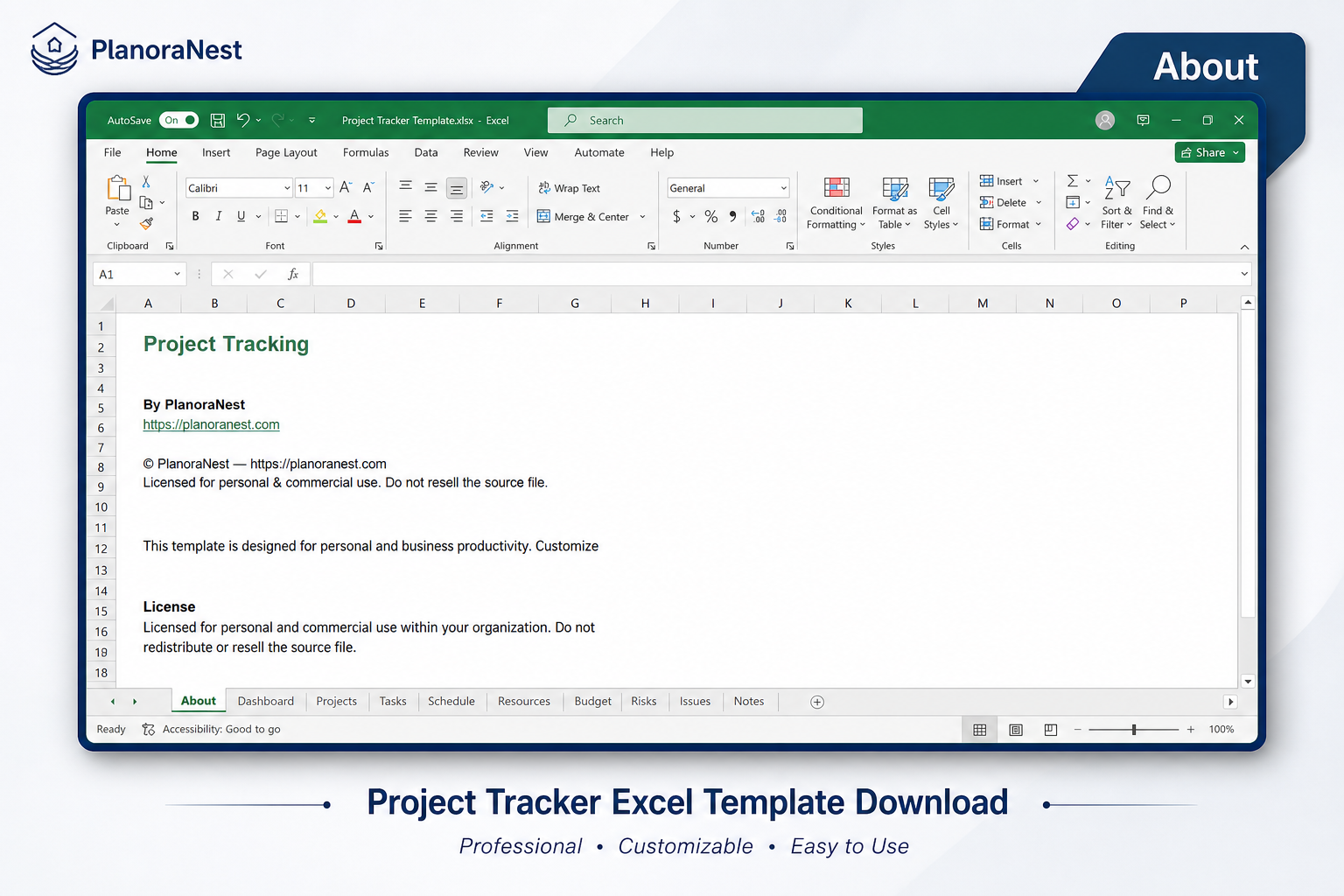
Preview of Project Tracker Excel Template
Preview of Project Tracker Excel Template
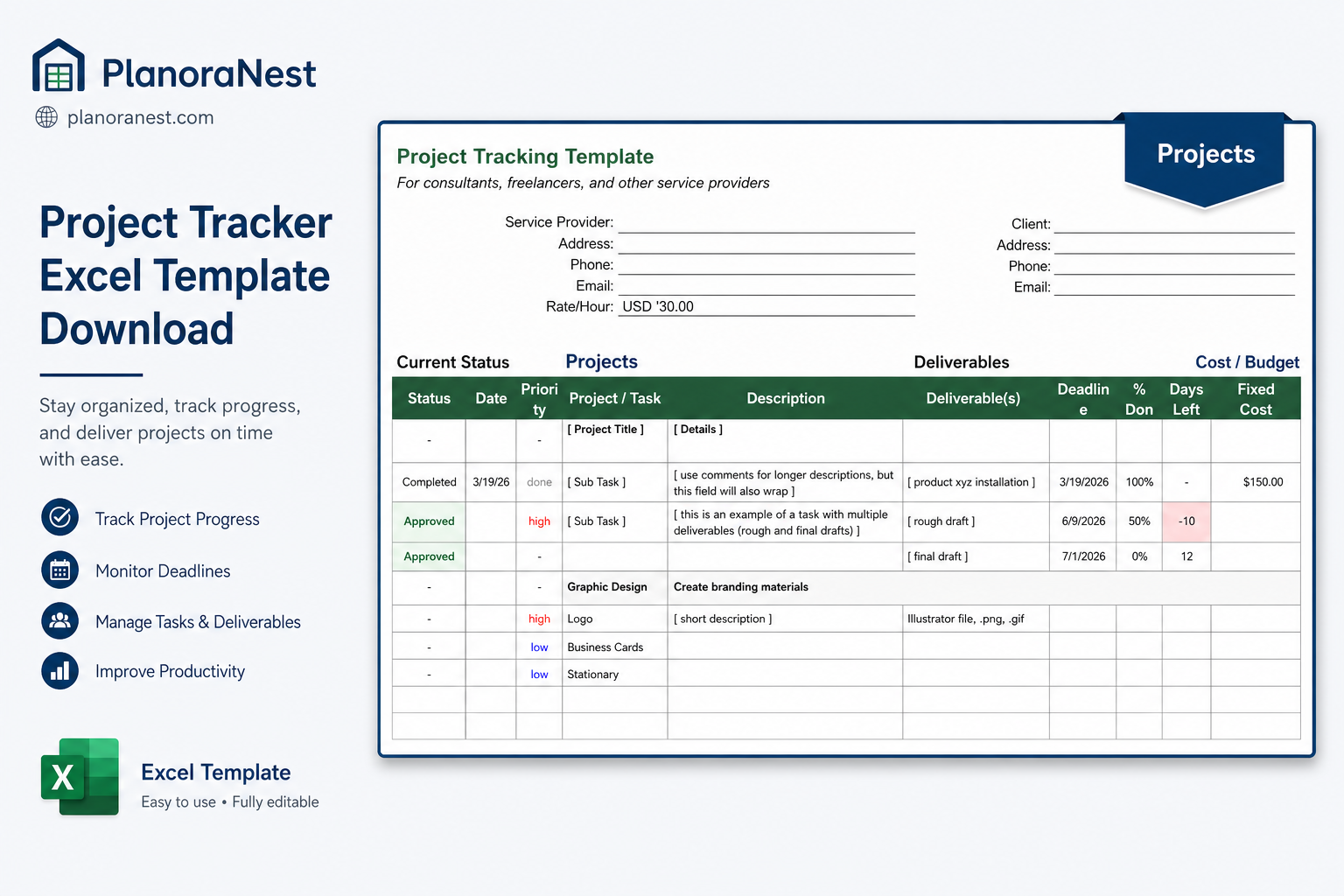
Preview of Project Tracker Excel Template
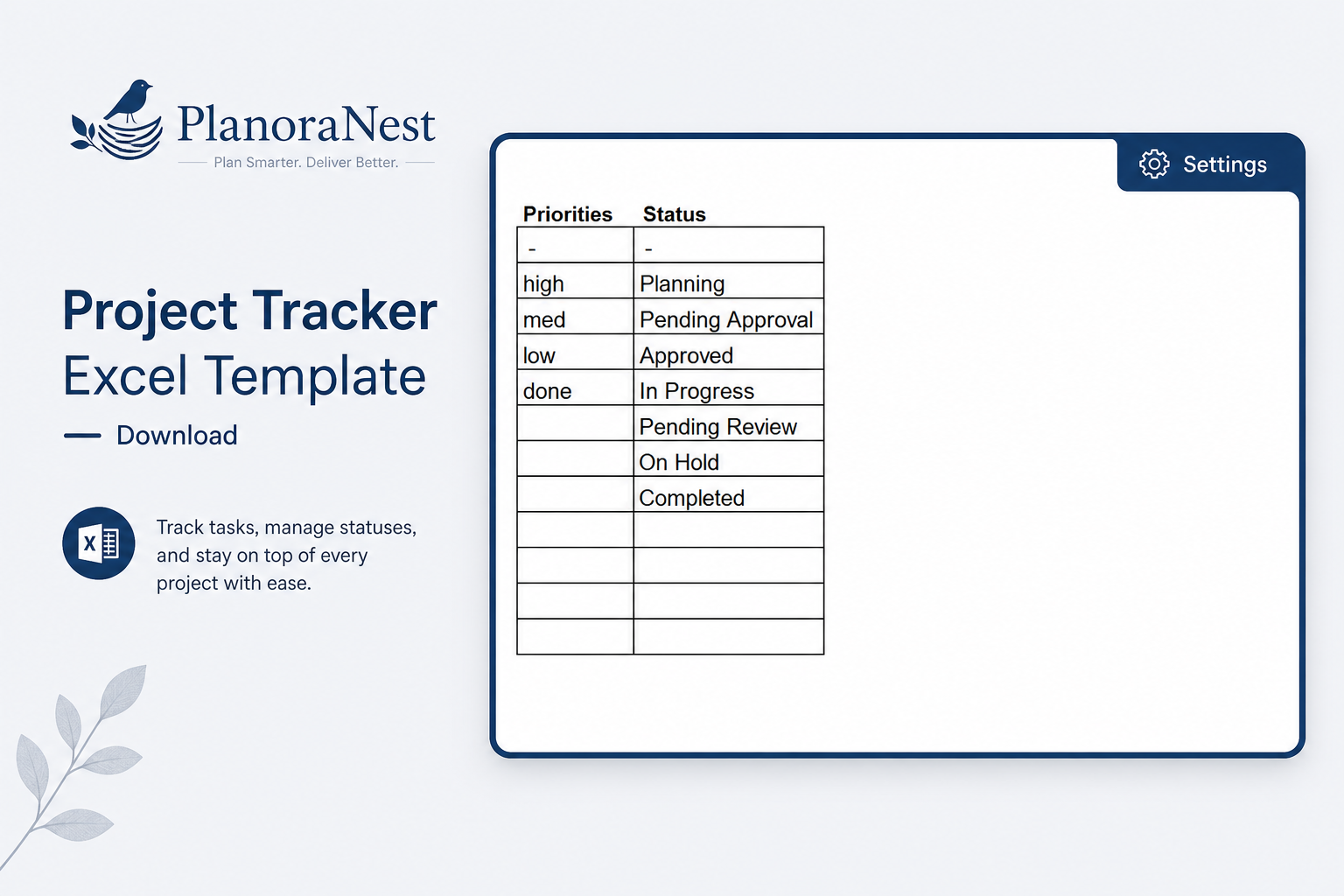
Preview of Project Tracker Excel Template
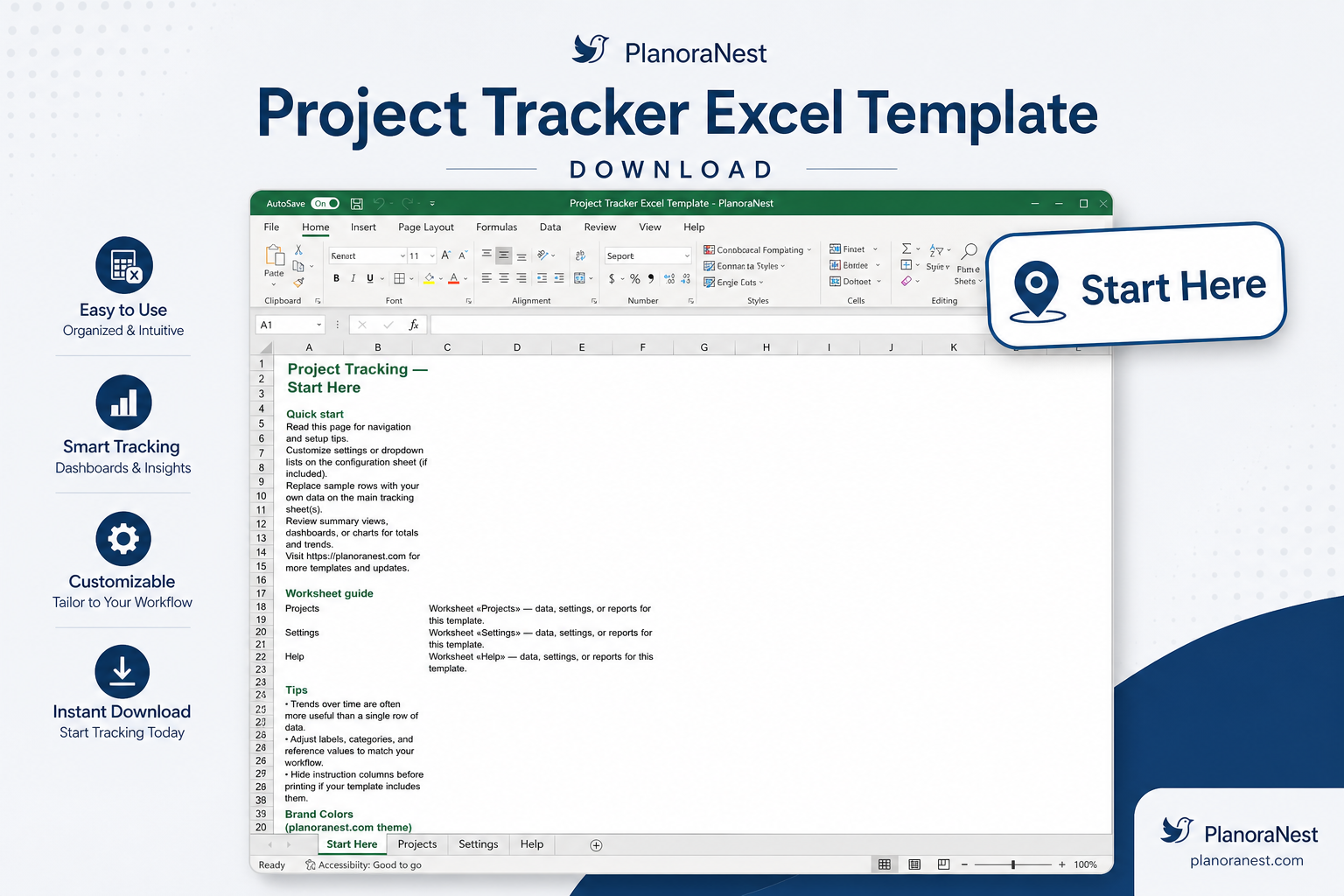
Preview of Project Tracker Excel Template
Open the Start Here sheet and read the overview to understand the layout and workflow.
Go to the Settings sheet first — customize the Priority list (e.g., High, Medium, Low) and Status options (e.g., add "In Review" or "Invoiced") to match your service delivery process. These changes flow automatically to the Projects sheet dropdowns.
Switch to the Projects sheet. Enter your company/service provider name and client name at the top.
Add each project: fill in Project Name, Client, Priority (dropdown), Status (dropdown), Start/End Dates, Budget, Hours Estimated. The % Complete column tracks progress manually or can be linked to Hours Spent vs. Hours Estimated.
As work progresses, update Actual Cost and Hours Spent to track profitability. Compare Budget vs. Actual Cost to see which projects are on track and which are running over.
Use the Priority and Status dropdowns to sort or filter your project list — focus on high-priority active projects or filter to see everything pending approval.
Microsoft Excel (desktop & web)
Google Sheets
WPS Office
LibreOffice Calc
One-time purchase · $1 USD · Instant download · No account required to use the file after purchase.
1. Purchase
Browse our shop and pick the templates that fit your needs — from business planners to productivity trackers.
2. Access
Since our products are digital, you'll receive immediate access after your purchase completes.
3. Use
Open your template in Google Sheets, Excel, or Notion and start using it right away with our included instructions.
Jenna Alvarez
Creative Agency Director
Verified purchaseSimple portfolio view, great for client reporting
Running a 6-person creative agency means every project has different timelines, budgets, and approval stages. The Projects sheet with its 15 columns covers all the bases — I added a "Revision Round" column and it fits right in. We use the Status = Pending Approval as our queue for client follow-ups. Wish it had a built-in revenue forecast chart from the budget data, but I built one in 10 minutes referencing the Projects sheet data.
David Okonkwo
MSP Service Delivery Manager
Verified purchaseScaled from spreadsheets without buying PSA software
Our managed services team evaluated Autotask and ConnectWise — both $50+/user/month. This $3.90 template replaced our mess of individual spreadsheets. Each engineer updates their projects on the shared Projects sheet, the Status dropdown keeps everyone honest about where things stand, and I use the Priority column to run our weekly resource allocation meeting. We track 27 client projects this way and have not missed a renewal or SLA deadline since adopting it.
Emily Hart
Independent UX Consultant
Verified purchaseFinally see my whole portfolio at once
I manage 14 active client projects at any given time and used to track them across 14 separate folders. The Projects sheet gives me a single-pane view — I can see which projects are In Progress, which are Pending Approval (and for how long), and which are running over budget. The Actual Cost vs. Budget comparison caught one project that had quietly gone 40% over before I noticed. Settings sheet is brilliant — I added an "Invoiced" status and it propagated everywhere instantly.